Admin Interface
Postgram Admin is the browser-based operator interface for first-time setup and ongoing administration. It provides a guided path through configuration and puts the most common operational tasks behind an MFA-protected admin session.
Open the Admin onboarding flow
Section titled “Open the Admin onboarding flow”-
Start the Docker stack:
Terminal window docker compose up -d --build -
Read the one-time bootstrap token from the API container output. If the startup banner has scrolled away, retrieve the latest token with:
Terminal window docker compose logs mcp-server | grep 'Bootstrap token:' | tail -n 1 -
Open http://127.0.0.1:3000/admin, paste the token, and create the first admin user.
-
Enroll MFA with an authenticator app and complete the MFA challenge.
-
After an active MFA login, Postgram opens the guided onboarding flow automatically while onboarding is in progress. If you skip or complete it, you can still return to it from the Onboarding tab in the Admin dashboard.
The bootstrap token is stored hash-only in Postgres, expires after 24 hours, and is invalidated after the first admin is created. Its plaintext exists only in the original first-start logs. If Postgram points to a different database than before, use the latest bootstrap-token log line; an older token may belong to the previous database.
Resume onboarding safely
Section titled “Resume onboarding safely”Onboarding progress is stored server-side in Postgres. Refreshing or closing
the browser, signing out and back in, or restarting the containers resumes from
the latest saved step as long as the existing pgdata volume is preserved.
Use either of these commands while testing or continuing setup:
docker compose restart mcp-server postgram-uidocker compose up -d --buildDo not use docker compose down -v unless you intentionally want to delete the
Postgres volume and reset the installation. The -v flag removes the
server-side onboarding state together with the rest of the database.
What Admin provides
Section titled “What Admin provides”Overview
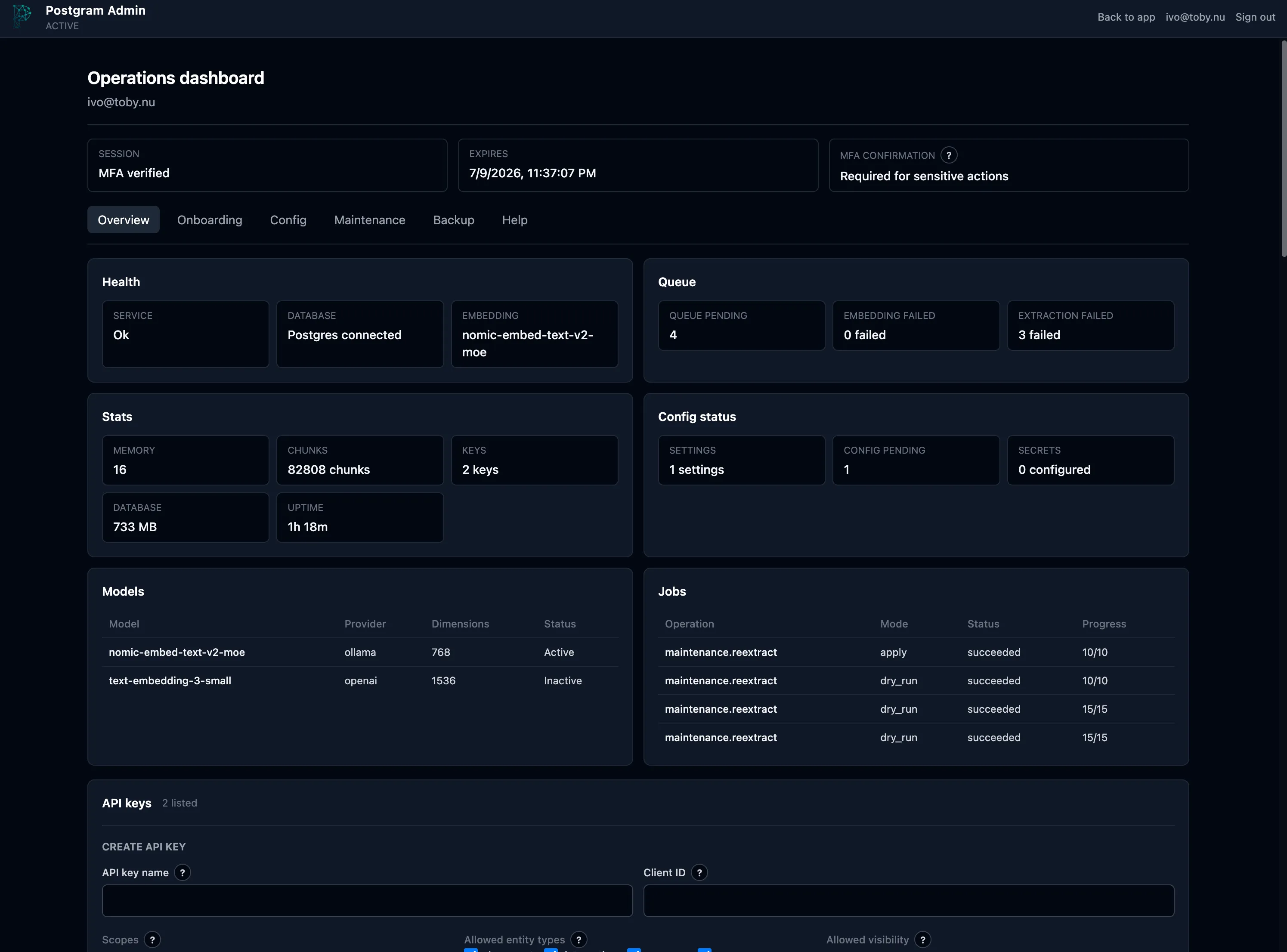
Section titled “Overview”The Overview tab brings together service and database health, enrichment queue status, entity and chunk counts, active models, background jobs, recent audit activity, and API-key management. Admin sign-in is separate from Postgram API keys: a user API key does not grant browser admin access.
Provider configuration
Section titled “Provider configuration”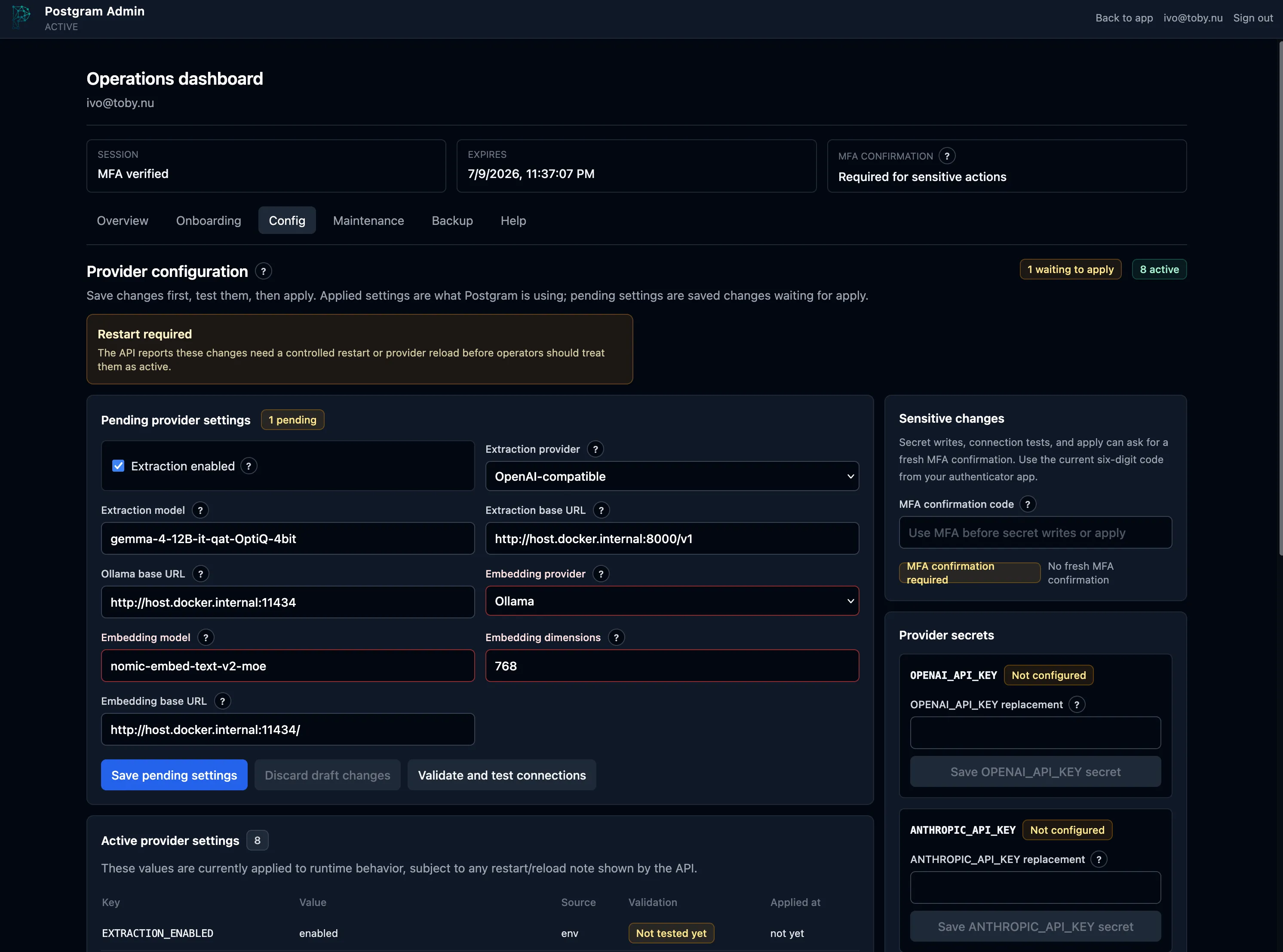
The Config tab separates saved pending settings from the configuration the runtime is actively using. The safe path is save, validate and test, then apply. Provider secrets are write-only: after saving one, Admin shows its status and metadata but never displays the plaintext value again.
Secret writes, provider apply, API-key creation, backup download, and maintenance apply require a fresh six-digit MFA confirmation code. This short confirmation window limits the impact of an unattended signed-in browser.
Maintenance
Section titled “Maintenance”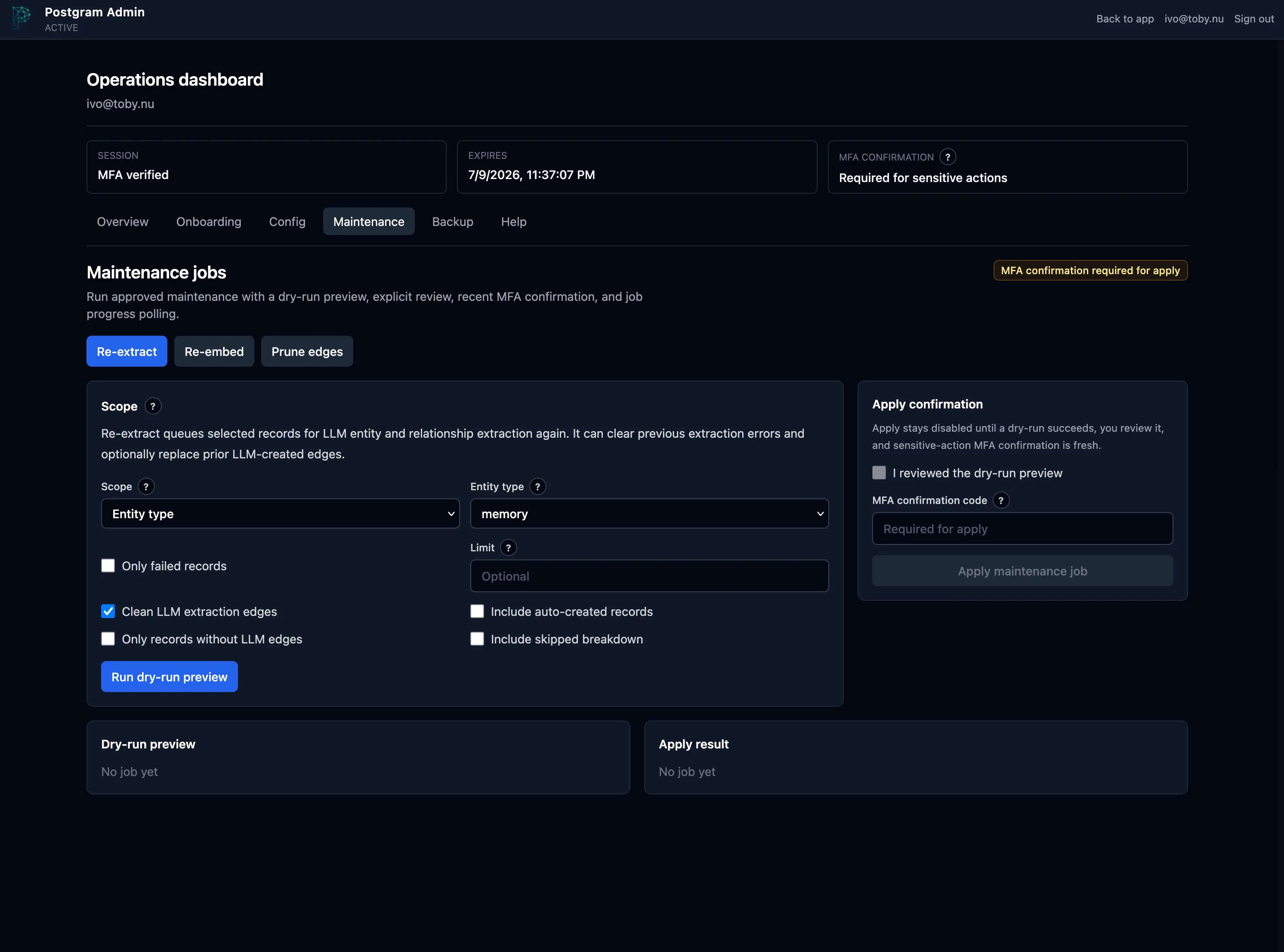
The Maintenance tab supports re-extraction, re-embedding, and constrained edge pruning. Each workflow starts with a dry-run preview. Applying the job remains disabled until the preview succeeds, you explicitly review it, and a recent MFA confirmation is present.
Backup and restore
Section titled “Backup and restore”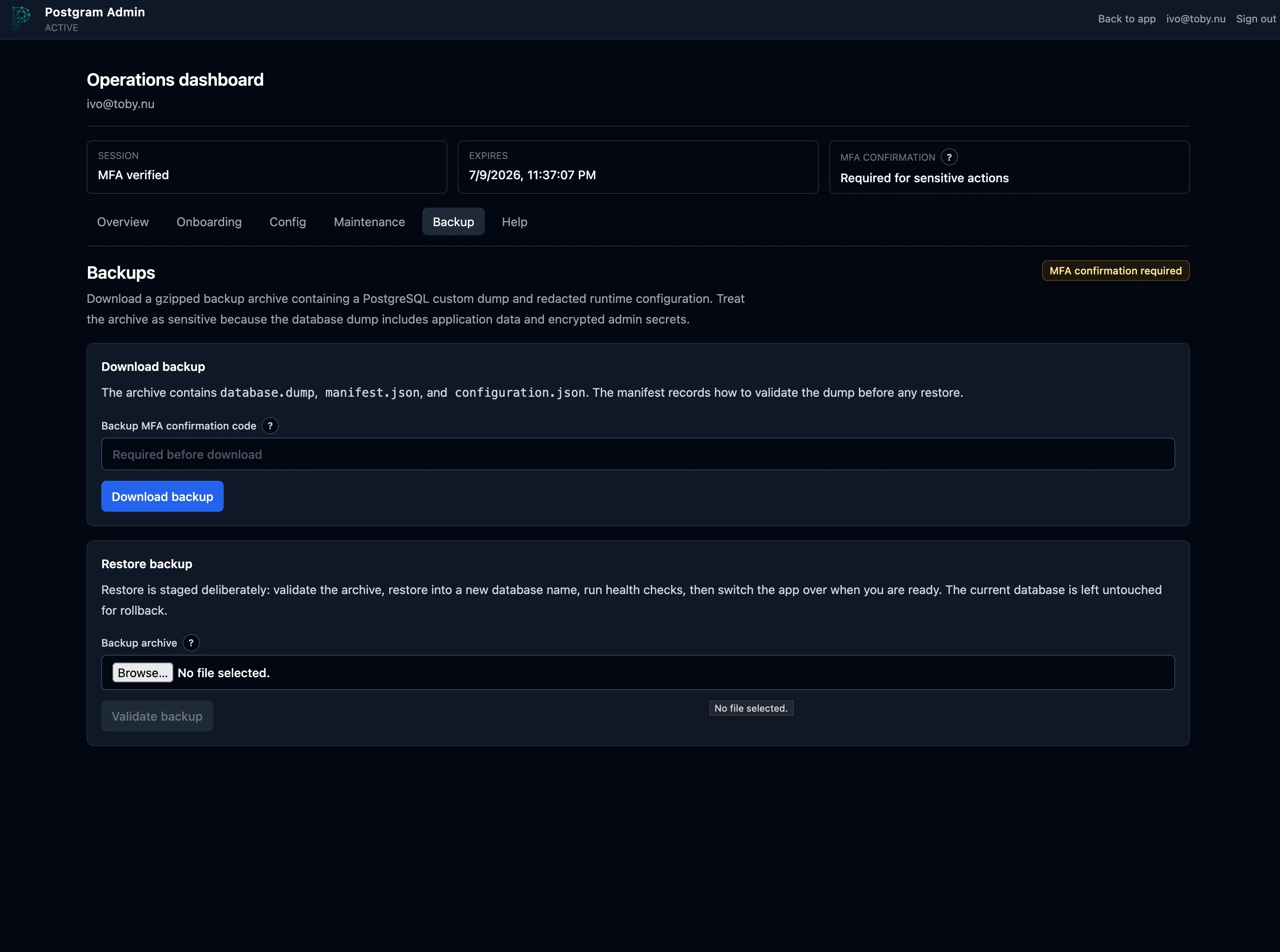
The Backup tab downloads a gzipped archive containing a data-only PostgreSQL custom dump and redacted runtime configuration. Treat the archive as sensitive: the database dump contains application data and encrypted admin secrets.
Restore is deliberately staged. Admin validates the archive, restores into a
new database name, and runs health checks before you approve switching the app
over. The current database is left untouched so you can roll back by restoring
the previous POSTGRES_DB or DATABASE_URL and restarting the services.
Back up the postgram_secrets Docker volume separately. Database backups do
not contain the installation keys needed to decrypt stored provider secrets or
admin TOTP factors.
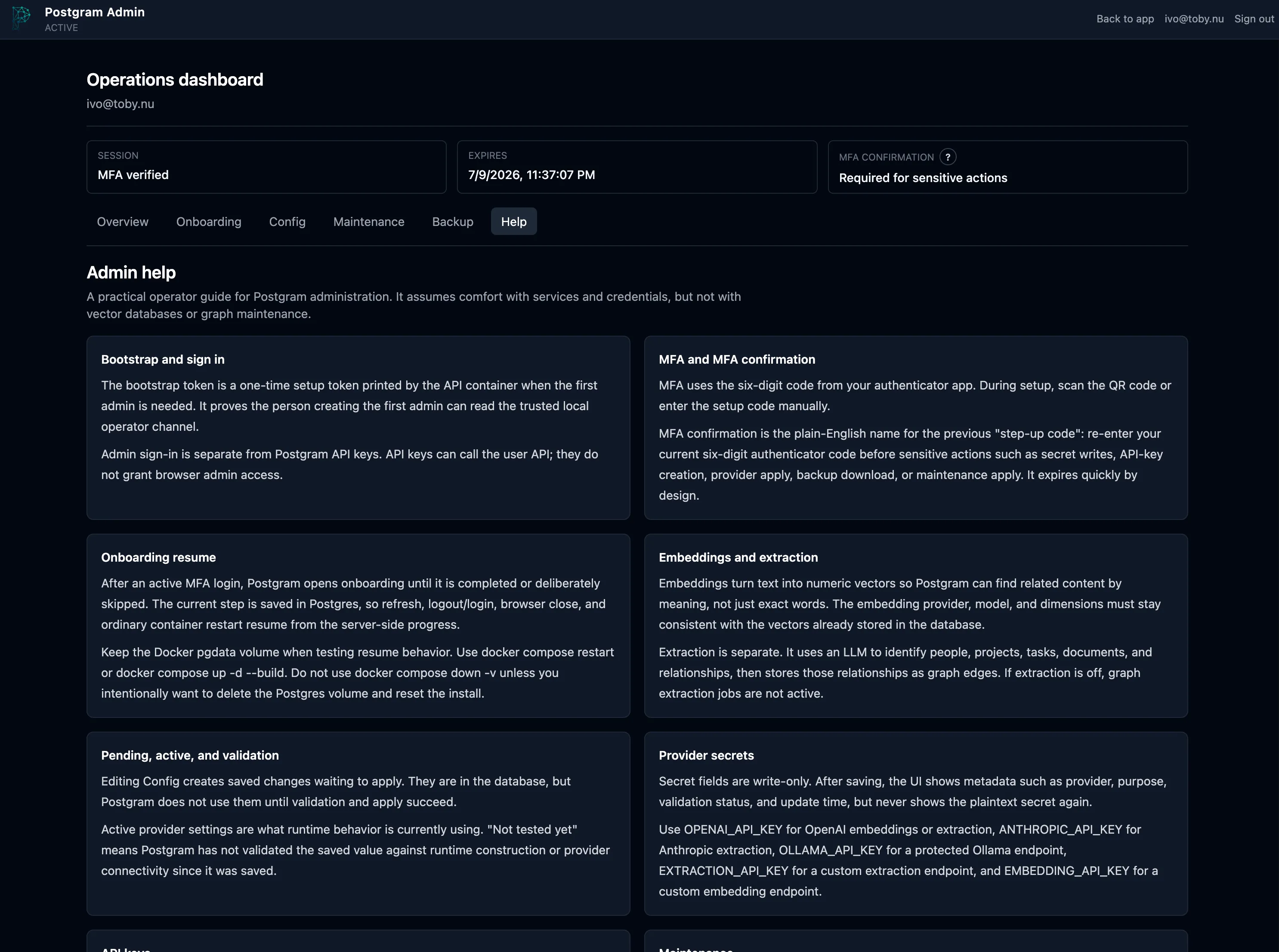
The Help tab explains the operating model in plain language, including bootstrap and sign-in, MFA confirmation, onboarding resume, embeddings and extraction, pending versus active settings, secrets, API keys, maintenance, and backup and restore.
When the CLI is still useful
Section titled “When the CLI is still useful”Normal Docker setup and maintenance should not require pgm-admin after
startup and bootstrap. Keep the admin CLI for emergency recovery, embedding
migrations, raw SQL inspection, and advanced operator jobs that are
intentionally outside the curated browser interface.
For the complete deployment and secret-handling details, see Docker Deployment and Backup and Restore.